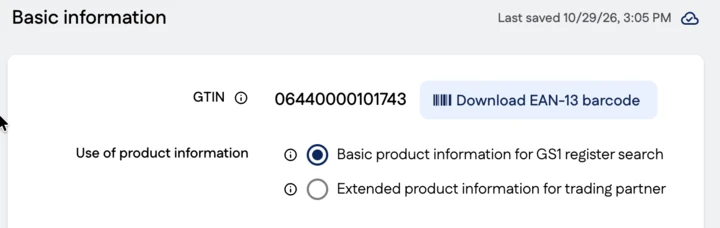
GS1 Data – Creating a GTIN without sharing product information
Add a product
Start adding a product in the list view by clicking the + Add product or package button.
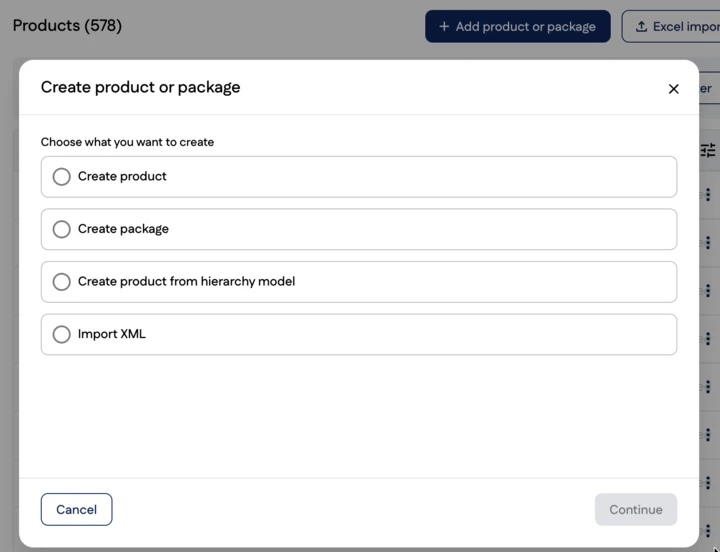
Continue by selecting Create product and selecting Continue. Create a GTIN for the product by selecting one of the following options:
Create a new GTIN
- Select this option when you want to create a new GTIN from your company’s GS1 Company Prefix. Open the drop-down menu and select the GS1 Company Prefix from which you want to create the GTIN.
The number of available GTINs is shown next to each GS1 Company Prefix. (You can order a new GS1 Company Prefix if there are no available GTINs in the list.)
Enter GTIN
Select this option when the GTIN has been created from your GS1 Company Prefix, but you maintain your GTINs in a separate system, such as Excel, ERP or PIM.
GPC category
Select the category that describes the product as precisely as possible or is the closest match. For example, there is no specific code for smoothies, so the code is selected based on other characteristics, such as Fruit Juice, Vegetable Juice or Dairy Based drink. Be consistent and use the same code for similar products, as this makes it easier to update product information.
Select the scope of product information
The Use of product information selection is displayed to users who create or enter a new GTIN from their own GS1 Company Prefix. Select Basic information for allocating GTIN when you want to create a GTIN without sharing product information to trading partners.
Click Add product and continue by entering the basic information in the editing view. Product information is organised into different information groups. You can move between groups and maintain product information.
GS1 Data saves the information you maintain automatically; you do not need to save it separately.
Creating a packaging item
Add the next level for the base unit in the Package hierarchy group by clicking the Add package hierarchy button.
Enter the following information:
- Packaging hierarchy level: select Case or Pallet
- GTIN: in addition to the options that are the same as when creating a product, you can also choose Create new GTIN-14-code
GTIN-14 can only be assigned to a package or pallet that contains several pieces of one product.
NOTE: A GTIN-14 code is represented in barcode format as ITF-14. The ITF-14 barcode is not recommended for use except in barcodes printed directly on corrugated cardboard. An ITF-14 barcode cannot be read at a retail checkout, so it cannot be used on products sold to consumers.
- Included products: Enter the quantity of the contained product
- Confirm by clicking Add package.
For a transport package, enter the number of contained products. For a pallet, enter the number of contained cases.
For packages containing several products, all the products they contain and their quantities are saved to a GTIN-13.
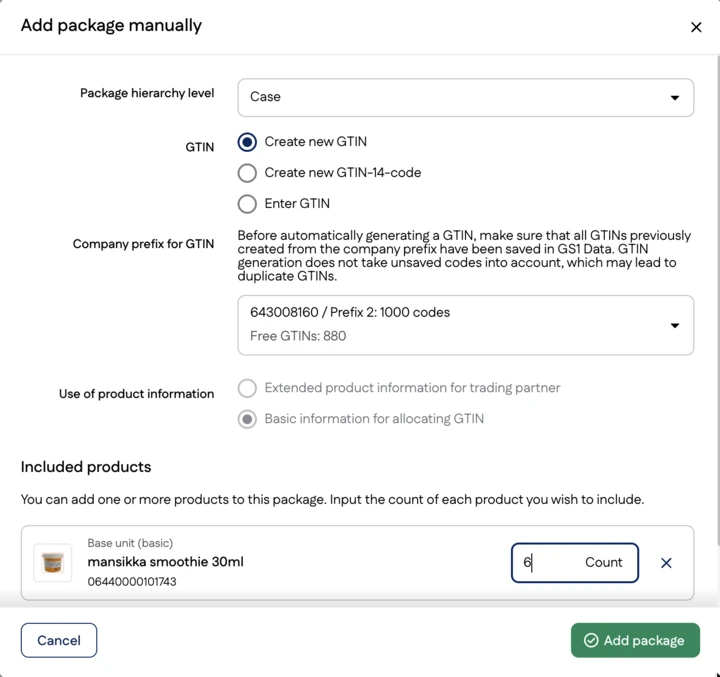
Continue by entering the required information for the packaging item, such as measurements. Finally, publish the information.
Link Registry
Here you can add links related to the product, for example to a recipe website or instructions for use. You can add multiple links by clicking the Add link type button. To remove a link, click the trash can icon.
The links you add are displayed in Verified by GS1 and can be used by online stores, for example.
Change the scope of product information
You can change the scope of product information in the Basic information group. The fields displayed change accordingly. For example, when you enable product information sharing for a product that previously had only basic information, many new fields become available to complete. Changing the scope creates an unpublished change.