GS1 Data – Editing view functions
Completing base unit information
Product information is organised into different data groups. You can move between groups and maintain product information. GS1 Data saves the information you enter; you do not need to save it separately.
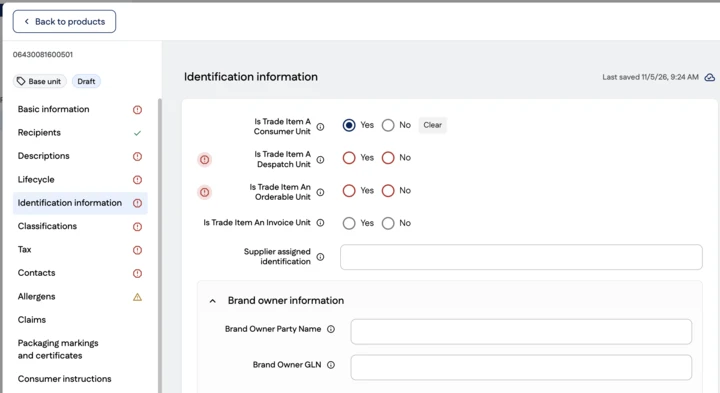
Go through all the data groups in the menu on the left and enter the product information. You can move between groups without saving, as GS1 Data saves the information automatically. The information to be entered for a product depends on its GPC category, in other words, the type of product. As a general rule, enter:
- all information shown on the product packaging (e.g. ingredient list, name, packaging marks)
- all information that can be determined from the product packaging (e.g. weight, packaging materials and dimensions)
- information required by legislation (e.g. product origin information)
- information needed by product information recipients (e.g. the basis for the unit price and information in different languages)
Data field instructions
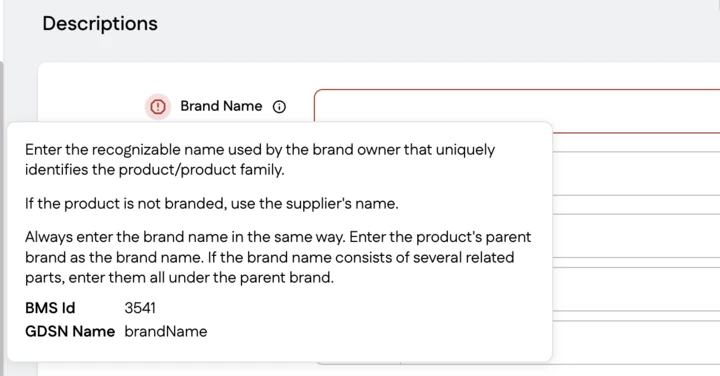
Next to each data field, there is an information text (i) describing how to use the field.
Errors and warnings
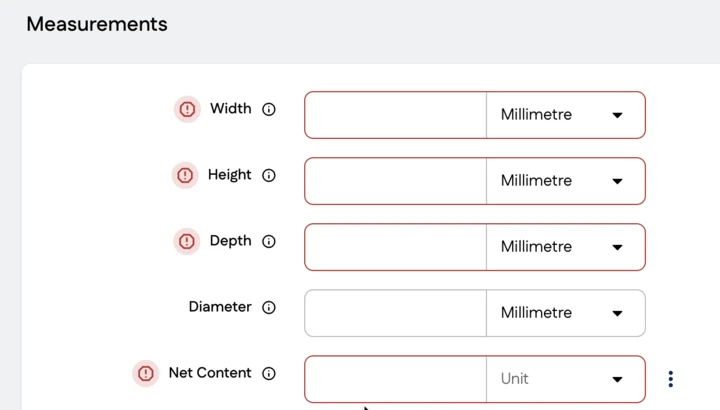
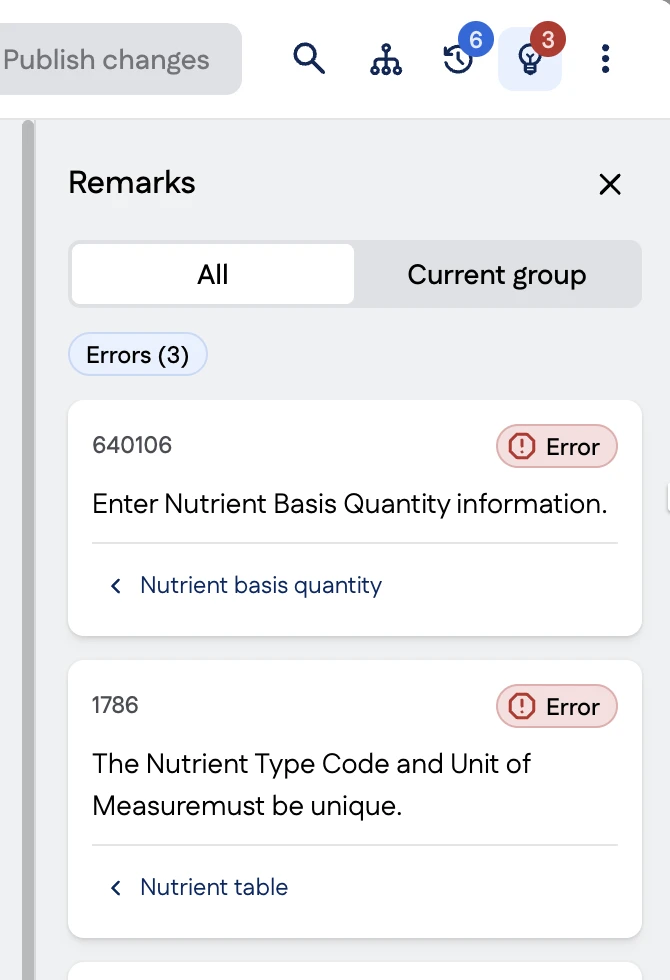
Product remarks guide you when entering product information. Remarks are shown in several places: in the editing view, next to the data groups and in the Remarks list.
There are two types of remarks:
- Error: the message is red and prevents the product information from being published.
- Warning: the message is yellow and indicates missing information or information that needs correcting. A warning does not prevent the product information from being published.
A wide range of other information is also provided for products, such as information required by legislation or needed for online stores. The information to be provided for a product depends on the product category; for example, different information is provided for food products than for non-food products.
If there is an error or a warning, the missing or incorrect information is highlighted with a remark both in the relevant data field and in the data group. Click the remark for more information. The remark for the field remains visible until you have entered the correct type of information in the field.
Remarks list
Remarks are listed in the product editing view. The list is open by default in the product editing view. You can close the list if you wish and easily reopen it using the Remarks icon in the top menu.
You can filter the remarks to see either all remarks for the product or only those for the selected group. All remarks are shown by default. You can go to the relevant data field from the Remarks list by clicking the field name in the list.
Please note that if an error is at another packaging level, the Publish button is grey and publishing is not possible.
Field search in the editing view
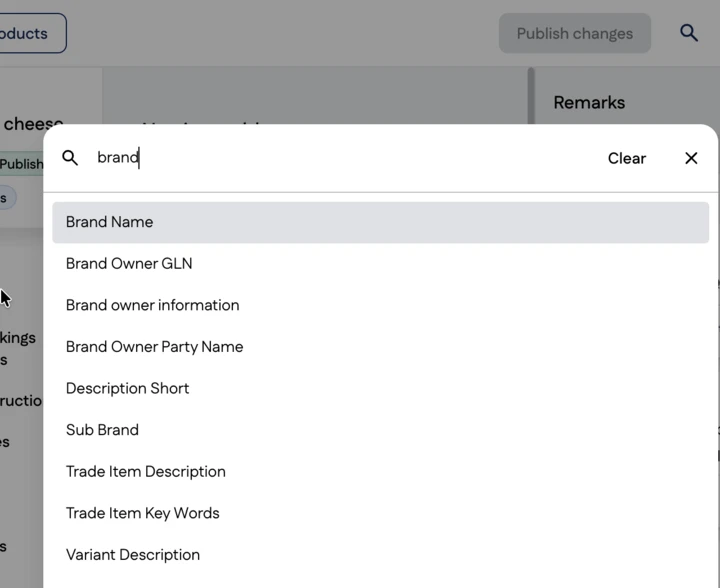
You can search for fields by clicking the magnifying glass icon on the editing view. The search covers both fields containing information and empty fields. The field search covers the fields of the product, transport package or pallet in which the search is performed. You can search using the following criteria:
- Field name
- Group or class name, e.g. measurements
- Text in field-specific instructions
- Names and IDs of GDSN attributes associated with the field
Selecting a result takes you to the field. The selected field is also highlighted.
Change included products or packages
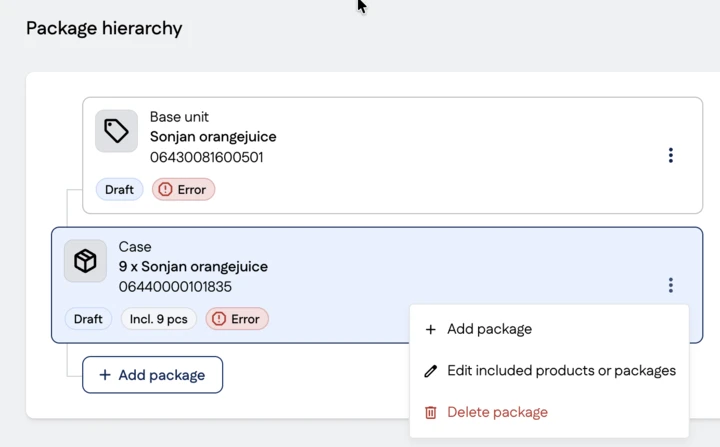
If a transport package is in draft status, you can change the products or packages it contains by selecting Edit included products or packages from the three-dot menu in the Package hierarchy group.
- You can change the quantity of included products or packages
- You can add new included products or packages using the search function
- You can remove included products or packages
Editing or adding a GTIN in the editing view
You can create a product and leave the GTIN field empty. However, you must enter a GTIN before publishing the product. You can also edit the GTIN as long as the product is in draft status.
To add a GTIN to a draft, open the Basic information group for the product or package and click the Add GTIN button.
Changing the package hierarchy level
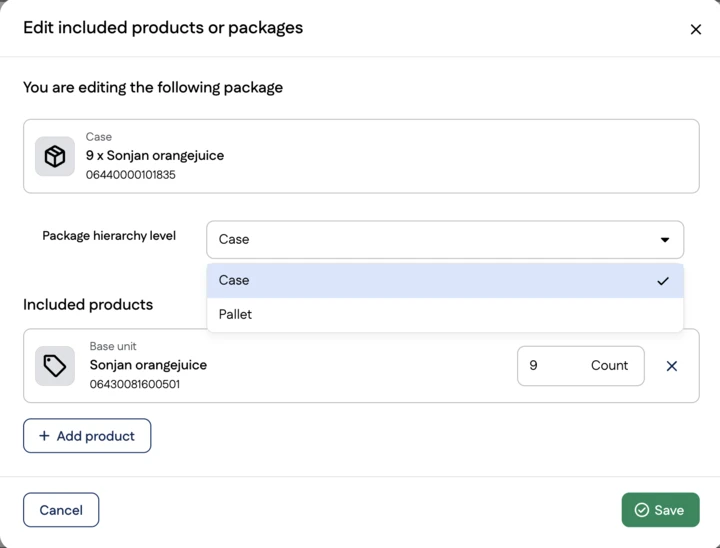
You can change the package hierarchy level (e.g. from a pallet to a transport package) if you accidentally select the wrong one, as long as it is in draft status.
Make the change in the Package hierarchy group. Select Edit included products or packages from the three-dot menu.
Then change the Package hierarchy level and save.
Deleting a product draft
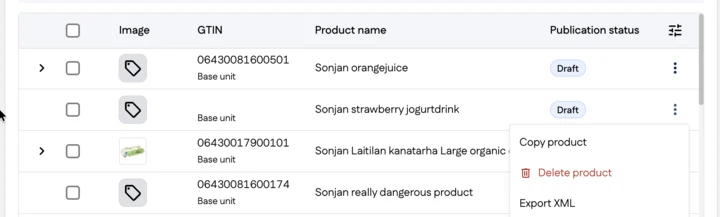
When a product is in draft status, you can delete it in either the product list view or the editing view. You can only delete products that are in draft status.
- In the product list view
- The Delete product option is available in the three-dot menu on each product/package row
- In the editing view
The Delete product option is available in the three-dot menu or in the Package hierarchy group.
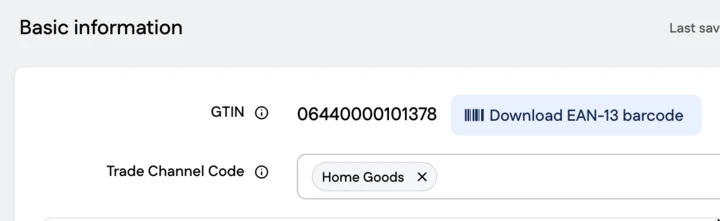
Download a barcode as a file
You can download a barcode for a product if its GTIN has been created using your company’s active GS1 Company Prefix. You can download a barcode if the GTIN is in one of the following formats:
- GTIN-8
- GTIN-13
Clicking the barcode download button downloads the barcode as a PDF file.