GS1 Data – Exporting product information to Excel
You can use the Excel function in GS1 Data to create reports, compare product information and, in the future, make updates. The Excel function is still under development.
Select product information
Open the column selector in the product list and add the information you want to export to an Excel file. The column selector is the icon on the right-hand side of the header row in the product list.
- You can add any information field as a column, product images and documents are not displayed in Excel.
- You can rearrange the columns by dragging them. The information is displayed in Excel in this order.
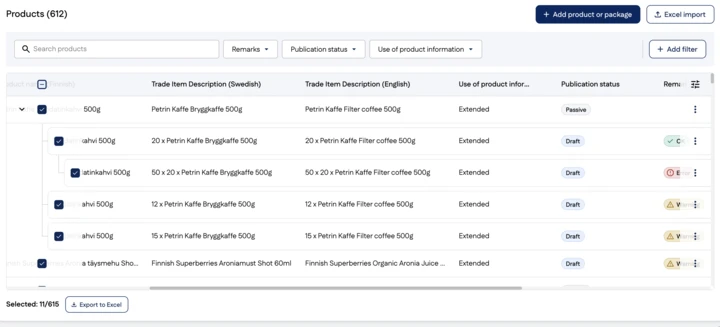
By default, the packaging hierarchy is not exported to Excel. You can choose to include the packaging hierarchy in Excel, in the product listing, click the arrow icon in front of the row to open the hierachy.
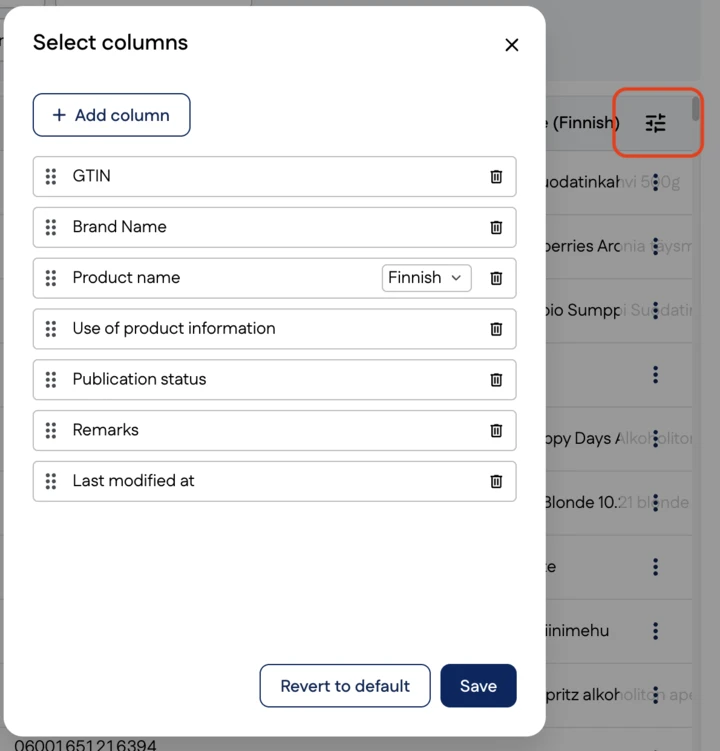
Finally, save the selected order and criteria.
The column Use of product information
You can choose whether to export products with extended product information or only basic information for allocating a GTIN to Excel. First, select Use of product information from the column selector, which will display a column in the product list with the options Extended or Basic information.
Continue by adding the filter Use of product information and select either Extended or Basic information.
Select products
The Excel export function is started in the list view. Start by searching the products and/or packaging items you want to export to Excel. You can search for and filter products in the product list using both the product search and the filters.
Next, select the products and/or packaging items. You can select all rows in the search results by clicking the checkbox next to the GTIN code. You can select products in Draft, Published or Discontinued status for Excel export. You can also export products that do not yet have a GTIN code.
After selecting the products, you can start the Excel export by clicking the Export to Excel button in the product list.