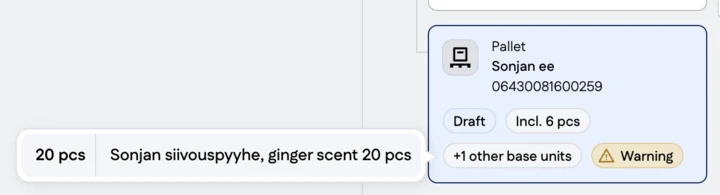
GS1 Data – Package hierarchy navigation view
The package hierarchy navigation view is on the right-hand side of the product editing view. You can open the view using the actions in the top-right corner of the page.
You can use the package hierarchy navigation view to move between levels of the package hierarchy. The selected level is highlighted in the user interface so that you know which level of the package hierarchy you are on.
When you move between levels of the package hierarchy using the navigation view, you remain in the same information group as on the previous level. For example, if you move from the Package hierarchy group of a base unit to a transport package, you are taken to the Package hierarchy group of the transport package. If there is no corresponding group on the selected level, you are always taken to its Basic information group.
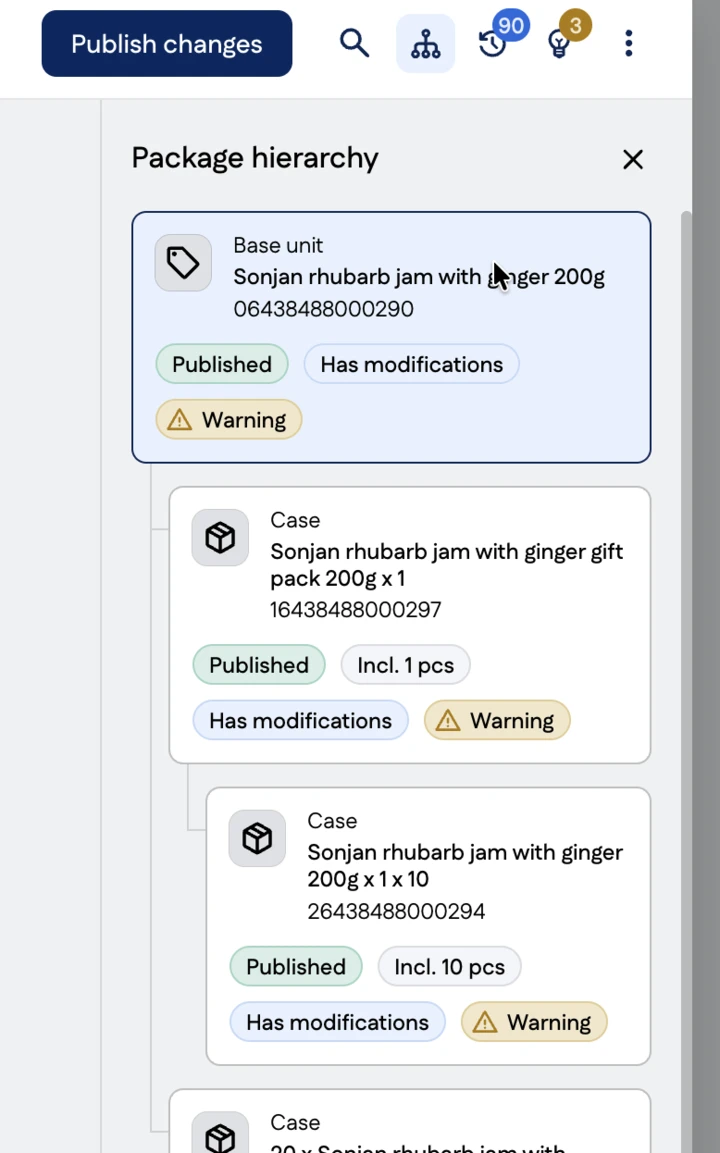
Selected hierarchy level
All package hierarchy branches for the product are shown in the package hierarchy navigation view. The branches displayed depend on which product or package item you have selected:
- When a base unit is selected, all package hierarchy branches that include the product are shown.
- When a package item is selected, all the products and package items it contains are shown, together with all package hierarchy branches that include it.
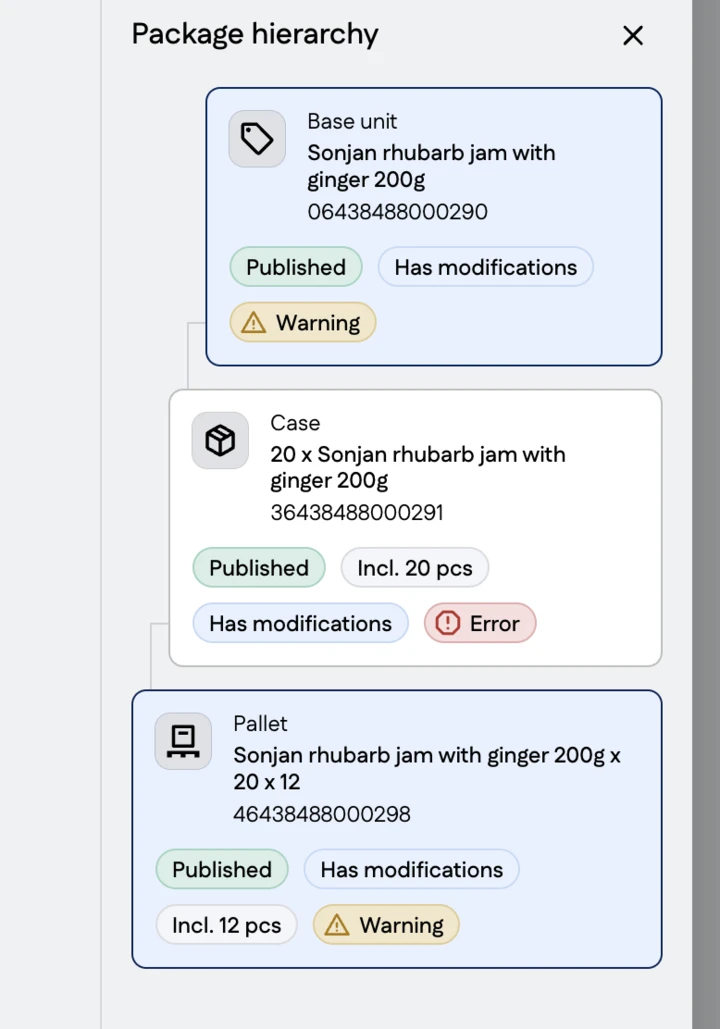
Product information on the product cards in the navigation view
The product cards in the navigation view contain the following information:
- Product image or an icon representing the hierarchy level
- Package hierarchy level (e.g. base unit)
- Product name
- GTIN code
- Product status and any additional indicators (e.g. Draft, Published)
- The most severe issue for the product (e.g. an error)
- Number of products or package items contained (e.g. Incl 48 pcs)
Number of products and package items contained
The number of package items included is shown on the product card in the navigation view. The quantity indicates how many products or package items from the next lower hierarchy level are contained in the package item you are viewing.
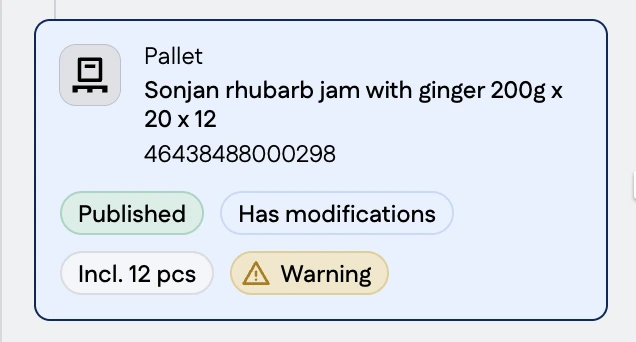
Assortments
The quantity indicator for an assortment shows the total number of package items it contains and indicates that it is an assortment. You can also see a breakdown of the number of package items by hovering over the quantity indicator.
Select an individual base unit or package item to see how many of that product are contained in the assortment.