GS1 Data – Searching for and receiving product information
As a recipient of product information in GS1 Data, you can search for product information and images in the service’s user interface and create product information subscriptions.
Product subscriptions
As a recipient of product information, you can create Product subscriptions and specify the criteria for the product information messages you wish to receive from GS1 Data. GS1 Data sends new and updated product information that meets the criteria as messages until the Product subscription is deleted.
GS1 Data sends the entire package hierarchy. The package hierarchy always consists of a base unit and may also include transport packages and pallets.
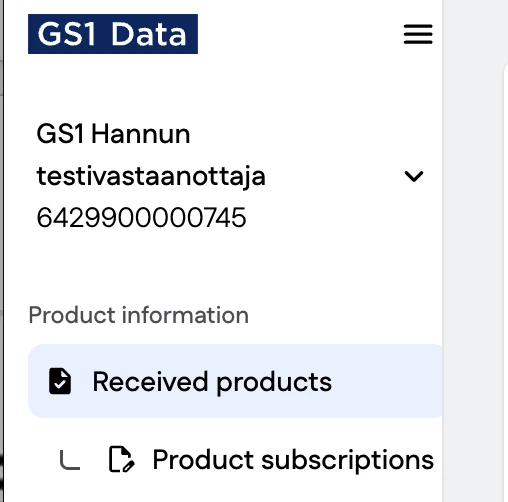
The navigation menu on the left of the user interface contains:
- Received products
- Product subscriptions
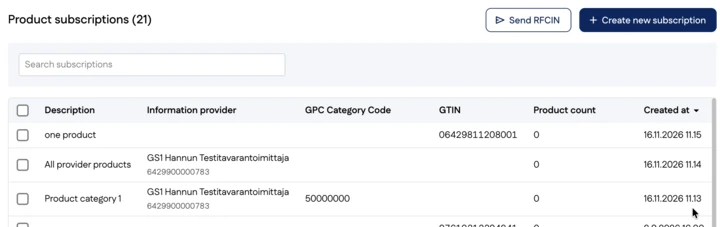
New Product subscription
In the Product subscriptions section, you can create a new product information subscription. Select Create new subscription.
You can use the Description field to name the subscription, e.g. Fairtrade coffee. The description is optional and is not forwarded anywhere.
The subscription must have at least one criterion:
- Data Supplier
- Product information from the data supplier you select.
- GPC Product Classification
- Product information for the product category you select, e.g. confectionery.
- GTIN Code
- Information for a single product.
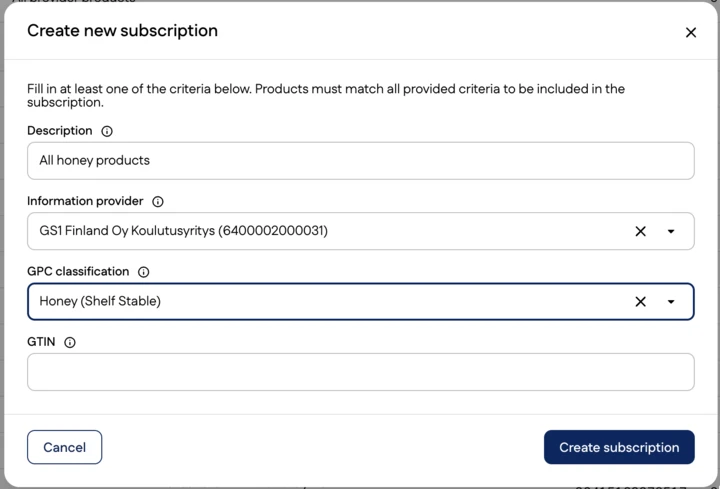
Finally, click Create subscription. The Product subscriptions list shows all active product information subscriptions. Products matching the product information subscriptions appear in the Received products section.
Deleting a Product subscription
You can delete a product information subscription by selecting the subscription you wish to delete and clicking Delete. You will then no longer receive messages about new or updated product information matching the query.
Received products
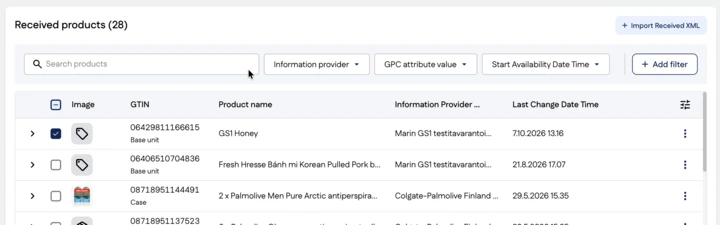
Received products lists base units by default. You can open a product’s package hierarchy by clicking the arrow icon at the beginning of the row. The package hierarchy will then open as a tree structure below the base unit.
In the product list view, you can open a product’s viewing page by clicking its row.
The product list view has a checkbox that allows you to select one or more products for the following actions:
- Export to Excel
- Resend Integration Messages
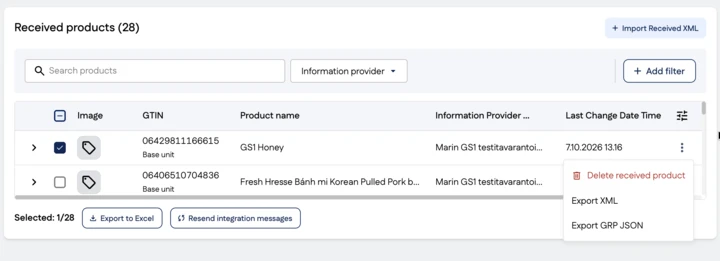
The three-dot button in the product list opens a menu with the following options:
- Delete Received Product
- Export XML
- Export GRP JSON
Columns in the product list
In addition to the default columns, you can select more columns to display in the product list. Click the column selector on the right and the Add column button. Search for the field you want.
You can rearrange the columns in both the column selector and the product list view by dragging the desired field to a different position. In the product list view, you can also resize columns so that, for example, the Product name is displayed in full.
Search products
You can search for and filter products in the product list using both the product search and filters.
The default column in the product list view is the Information provider filter, but you can add filters as needed using the Add filter button.