
GS1 Data – Updating product information
Keeping product information up to date and accurate requires regular review and updating. Recipients use product information in many ways, one of the most important being the information displayed in online stores.
Updating product information may involve correcting the information or making a minor change to the product. A correction means, for example, correcting a spelling mistake or adding information that was omitted from the product. The product’s characteristics do not change.
A minor change to a product may be, for example, a change in the country of manufacture, a change in packaging material, or changes to the packaging design. If the product’s characteristics change substantially, the product’s GTIN must be changed.
The updated product information overwrites the previous information, and the change takes effect immediately. A message containing the updated information is sent to recipients of the product information.
Edit a published product
You can easily make changes to a published product. From the product list, open the product editing view by clicking the product row, make the necessary changes, and finally publish the product information.
Has modifications label
When you make a change to a product, the product receives the additional label Has modifications, and if the product has no errors the Publish changes option in the editing view becomes active.
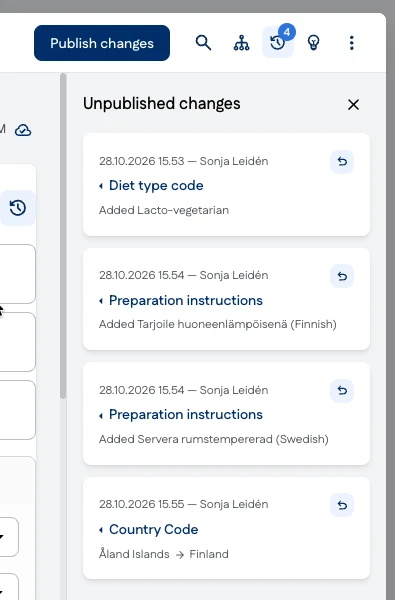
The changes made are highlighted in the product editing view so that it is clear which information has already been published and which information is currently being changed. Unpublished changes are shown as a list of change cards in the navigation pane on the right side of the editing view.
The card shows:
- When the change was made
- Who made the change
- The field that was changed
- The change that was made
The field name is a link that takes you to the relevant field.
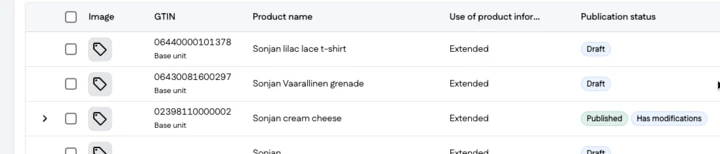
The Has modifications label is also shown in the product list, in the packaging hierarchy group, and in the packaging hierarchy navigation. The changes made are saved in the change list and remain there even if you close the browser and continue working later.
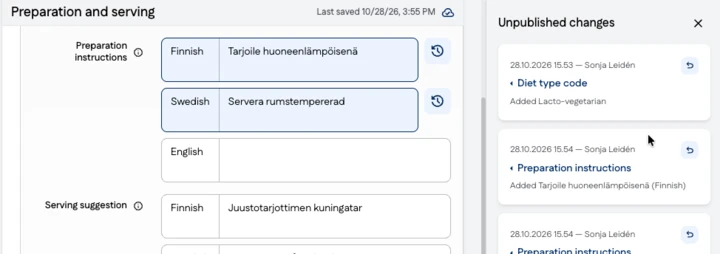
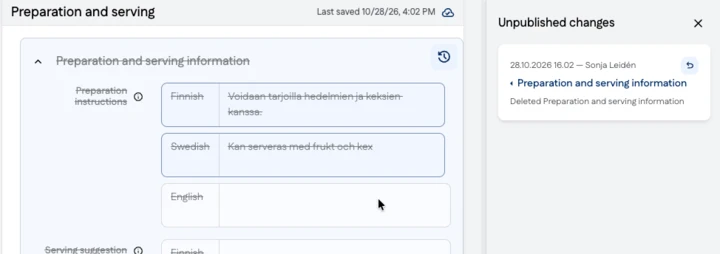
An icon illustrating the change is displayed next to a changed or added field. The changed or added field is also highlighted. A deleted field is highlighted, and all information to be deleted is also struck through.
Cancelling a change
You can easily cancel an update and restore the previous information. Click the arrow icon on the change card to cancel the change. If you have made a change that is inherited, this is indicated on the change card.
A deleted field is highlighted, and all information to be deleted is also struck through.
Publishing changes
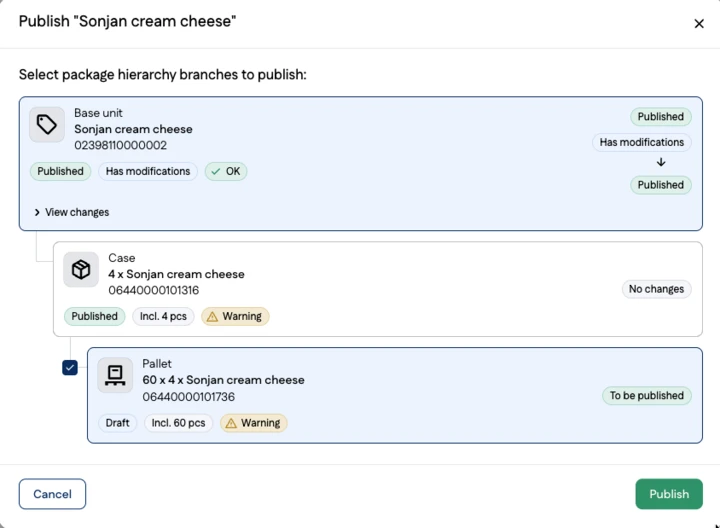
Publish the changes by clicking the Publish changes button. The Publish changes button becomes active when the hierarchies to be published contain changes or drafts and none of the content to be published has errors. Please note the following when publishing changes:
- If the hierarchy contains error-free draft branches, they are selected for publication by default. You can clear the selection of a draft branch.
- All changes made are published at the same time.
- The product card shows all status changes, for example: Published Has modifications - Published.
- If the Publish button is not active, the likely reason is an error in one of the hierarchies.
- Publish the changes by clicking Publish.
Does a change to product information require a new GTIN?
When updating product information, please remember that some changes require the product’s GTIN to be changed. A new GTIN may be required for both the retail product and its transport packages.
The international GTIN Management Standard defines consistent rules for managing the GTINs assigned to products. For example, it specifies when a new GTIN must be assigned to a product, assortment package, or transport package. If you are unsure whether a change to your product requires a new code, you can use the Do I need a new GTIN? tool to support your decision.