GS1 Data – Add package and pallet
Add case
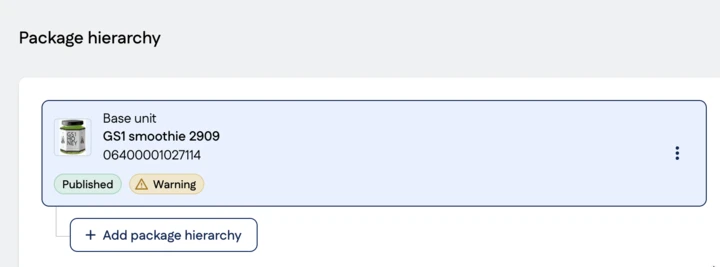
Add the next level to the base unit in the Package hierarchy group and clicking the Add package hierarchy button.
Add the following information:
- Choose how you want to create a package: manually
- Package hierarchy level: select case
- Is consumer unit: select yes or no
- GTIN: select one of the options, as when creating a product
- Products included in the package
- Enter the quantity of the included products
Continue by completing the required information for the packaging, such as measurements.
Add a pallet
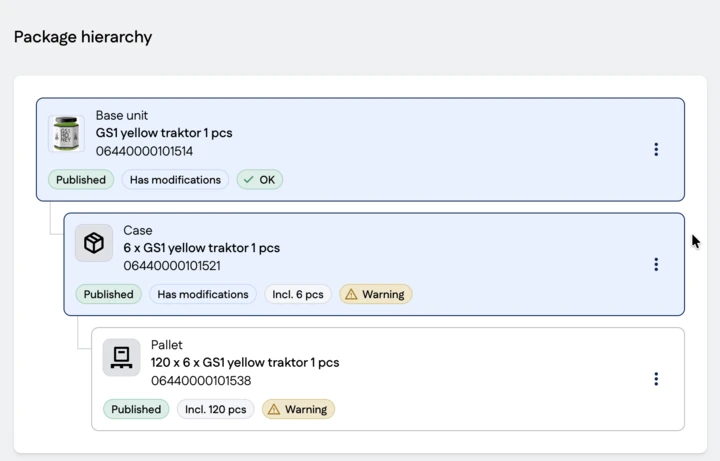
Click the Add package button and continue by adding a pallet to the package hierarchy.
There are different types of pallets and units handled as pallets, and different terms are used for them. All transport packages weighing more than 25 kilograms are created as pallets. Dollies and roll cages are also handled as pallets.
Every packaging hierarchy must include a pallet, except for the following products, which do not require pallet information:
- Direct delivery products
- jewellery delivered and stocked on shelves by the supplier
- magazines and books
- products delivered directly to a store or restaurant by the manufacturer
- Partially filled Transboxes
- an order-picked product picked into a Transbox according to the order
- a single Transbox containing several different products
Once you have created a new product and its associated package, you must publish the product that is now in draft status so that its information is sent to the trading partner.
Start publishing the new product by selecting Publish. The button is enabled only when the product has no errors and has an error-free hierarchy branch. You can publish the product from any level of an error-free hierarchy branch.
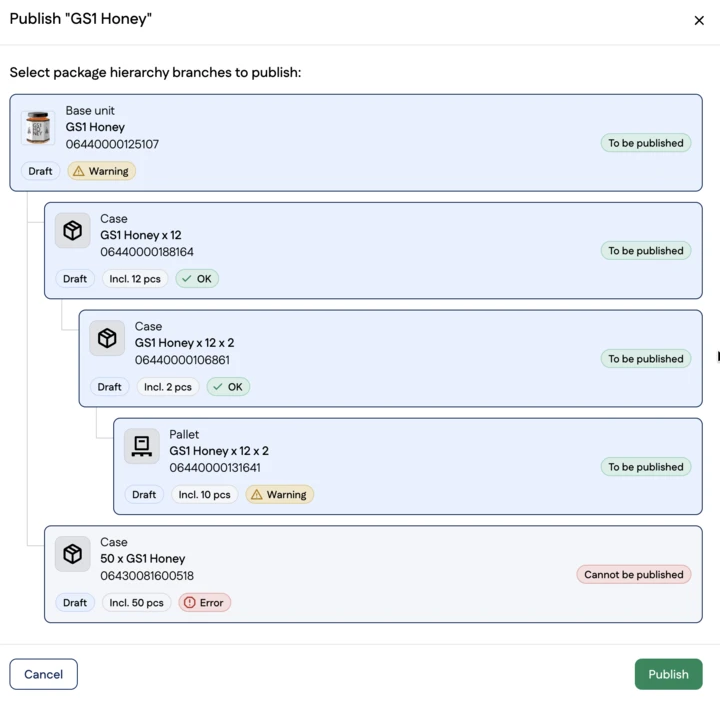
Select the hierarchy branch to publish
In the first step of publishing, all the product’s hierarchy branches are displayed. All error-free hierarchy branches are selected by default. Next, select which hierarchy branches you want to publish.
- You can select only complete, error-free hierarchy branches
- If the retail product has several hierarchies, select at least one
- If there is only one hierarchy, no selection is made
After successful publication, the product’s status changes to published.