
GS1 Data – Product listing, product search and sorting
Selecting, sorting and filtering products
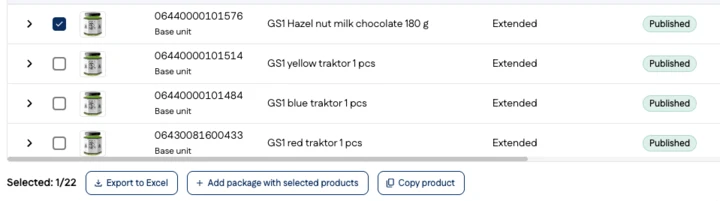
By default, the product listing shows base unit products. You can open a product’s package hierarchy by clicking the arrow icon in front of the row. The package hierarchy then opens in a tree structure below the retail product.
You can move from the product listing view to the product editing view by clicking the product row.
The product listing view includes a checkbox that allows you to select one or more products, for example, for the following actions:
- Copy product and packaging hierarchy
- Add package with selected products
Product listing columns
The default columns in the product listing view are:
- Product image or packaging level symbol
- GTIN
- Product name
- Publication status
- Product remarks
- Last modified at
In addition to the default columns, you can select more columns to be shown in the product listing. Click the column selector on the right and then the Add column button. Search for the field you want.
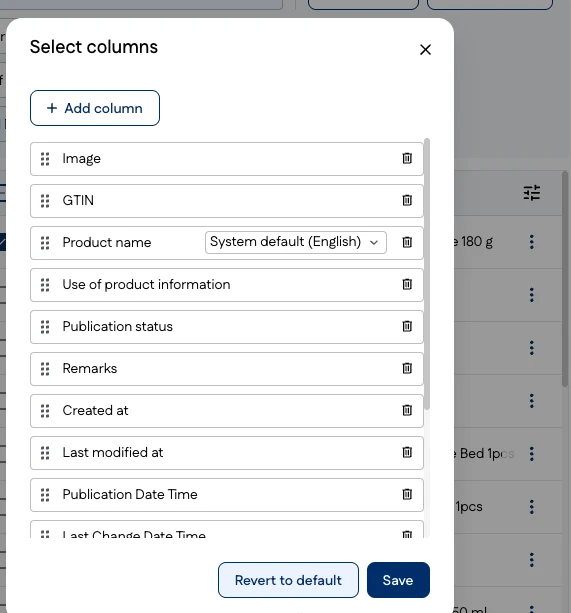
You can arrange the columns in the order you want both in the column selector and in the product listing view by dragging the desired information to a different position.
In the product listing view, you can also resize the columns so that, for example, the full product name is visible. Products in the product listing are sorted by modification date in descending order by default, with the newest first.
You can sort products by clicking the column headings. The selected sort order and columns remain in place until you restore the default selections.
Search products
You can search for and filter products in the product listing using both product search and filters.
Search products looks for matches in:
- Base units and all packages
- all text fields
- both draft and published fields
The number of search results is shown above the product search. In the product listing, you can refine the product search using product filters such as publication status and remarks.
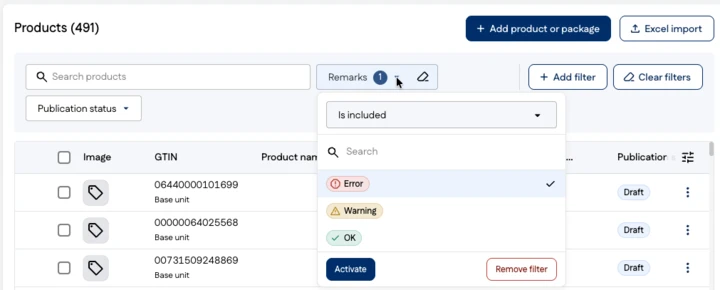
The filter also includes packages. When a search matches a package, the related retail products are shown in the search results. Click the Clear filters button in the product listing to clear the selected search filter values.