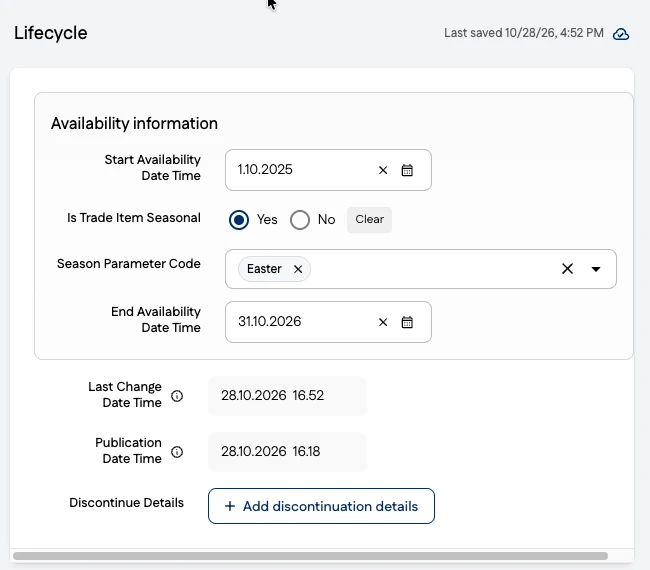
GS1 Data – Product lifecycle
In the Lifecycle group, you maintain information on product availability and seasonal product information.
Product availability starts
Start Availability Date Time is the date on which the product becomes available.
Availability means that the supplier can accept orders and deliver the product accordingly. Enter the Start Availability Date Time by selecting a date from the calendar.
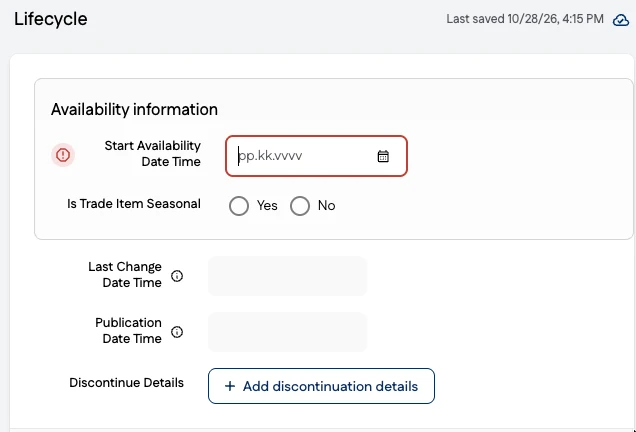
Edit the Start Availability Date Time
You can bring forward or postpone the start of availability.
- Click the Start Availability Date Time field and enter a new date.
- Publish the changes
Product availability ends
Information on the end of product availability must be entered in GS1 Data well before availability ends so that your trading partner has time to find a replacement product.
Discontinuation Date
Use this date to inform your trading partner in advance when the product or packaging item will no longer be available. The system guides you through the discontinuation process, whether you are discontinuing a product, a packaging item or the entire packaging hierarchy.
Proceed as follows:
- Open the lowest level of the packaging hierarchy that you are discontinuing, for example a 6-pack of soft drinks.
- Open the Lifecycle group and start discontinuing the product by clicking the Add discontinuation details button.
- Set the Discontinuation date.
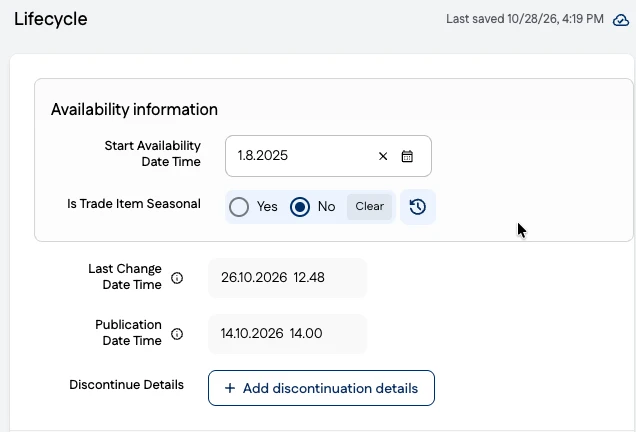
Example 1:
In this example, the user has selected a base unit and started the discontinuation process.
Discontinuation dates are automatically added to the packaging items because they contain only the consumer product being discontinued.
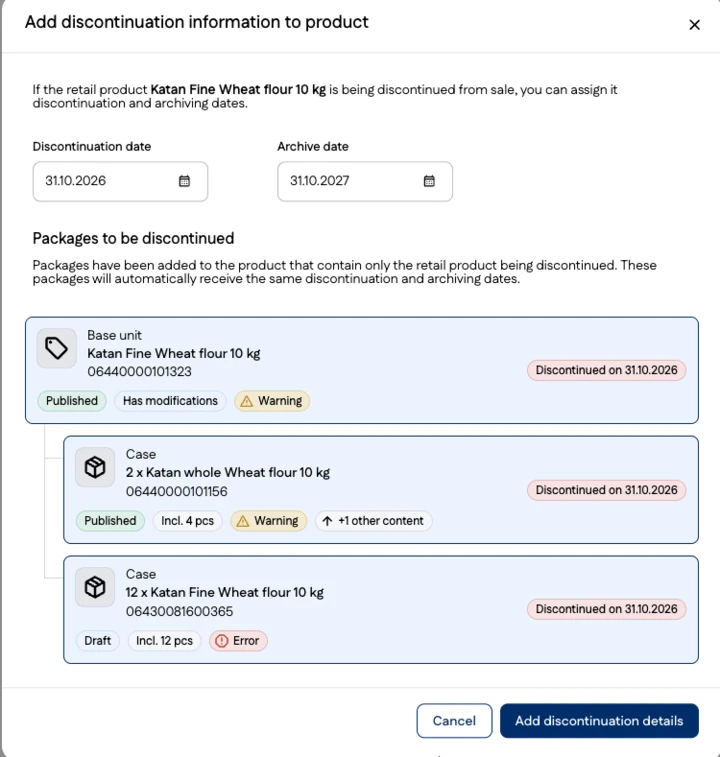
Example 2:
In this example, the user is discontinuing an assortment. The consumer products in the assortment are included in other packaging items, so they are not discontinued automatically.
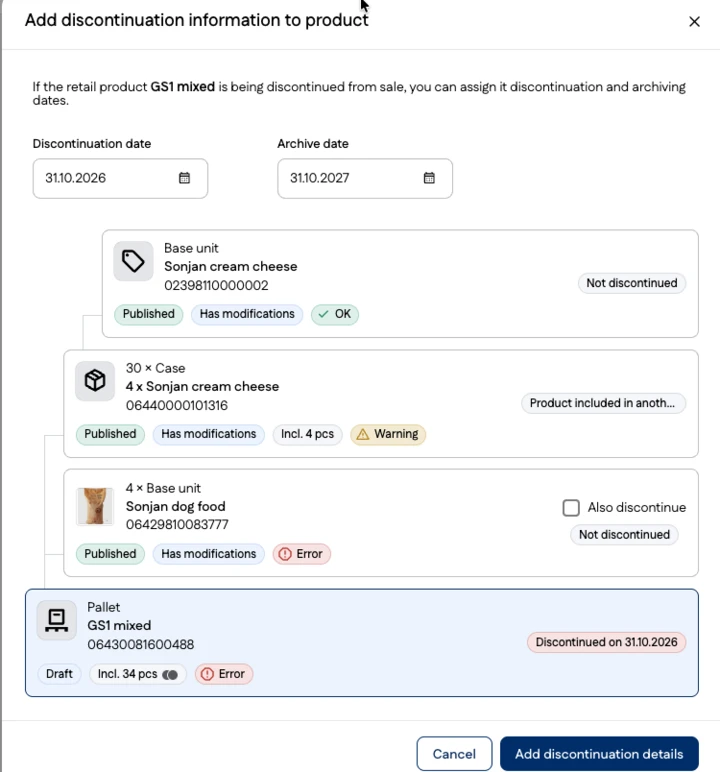
Example 3:
The user has selected a pallet to be discontinued. They can also discontinue the transport package or deselect it. The base unit is included in another packaging item, which is why it cannot be discontinued.
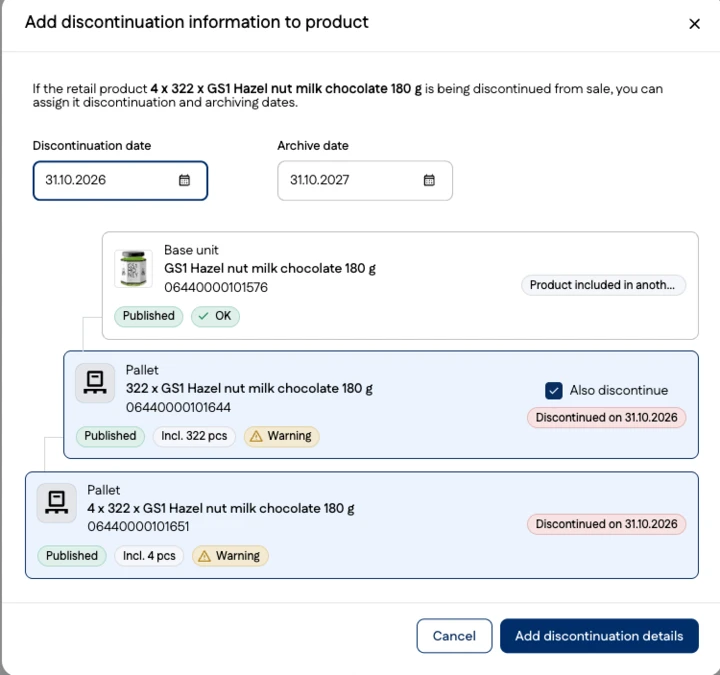
Archiving date
- Once the Discontinuation date has been entered, the Archive date field becomes available.
- The default is 12 months after the specified Discontinuation date.
Once you have entered the discontinuation dates and selected the packaging items to be discontinued, click Add discontinuation details. The discontinuation information is saved to the product as an unpublished change, and the product is also marked Has modifications. Publish the changes.
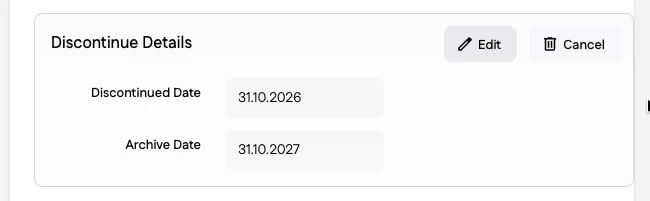
Edit the Discontinued Date Time
You can bring forward or postpone the end of availability.
- Click the Edit button and enter a new date.
- Confirm by clicking Add discontinuation details and publish the changes.
Cancel discontinuation
Cancel discontinuation in the Lifecycle information group by clicking the Cancel button.
By default, discontinuation is canceled for all parts of the packaging hierarchy for which discontinuation information has been entered. However, you can cancel discontinuation for individual packaging items.
You can cancel discontinuation only for consecutive levels of the packaging hierarchy: for example, you cannot cancel discontinuation only for the base unit and the pallet. However, you can:
- cancel discontinuation for the base unit only
- cancel discontinuation for the base unit and the transport package
Confirm the cancellation of discontinuation. The information is saved to the product as an unpublished change. Publish the cancellation of discontinuation.
Maintain seasonal product availability information
Seasonal products refer to products that are only available for a certain period of time, such as Christmas calendars. Maintain the following information for seasonal products.
- Start Availability Date Time: The date on which the product becomes available
- Is Trade Item Seasonal = Yes.
- Season Parameter Code: Select a value from the code list, for example Easter
To indicate when a seasonal product will no longer be available, enter the End Availability Date Time.