
GS1 Data – Add a product
Start adding a product by creating a base unit. Then add other packages, such as cases and pallets.
Start adding a product in the list view by clicking the + Add product or package button.
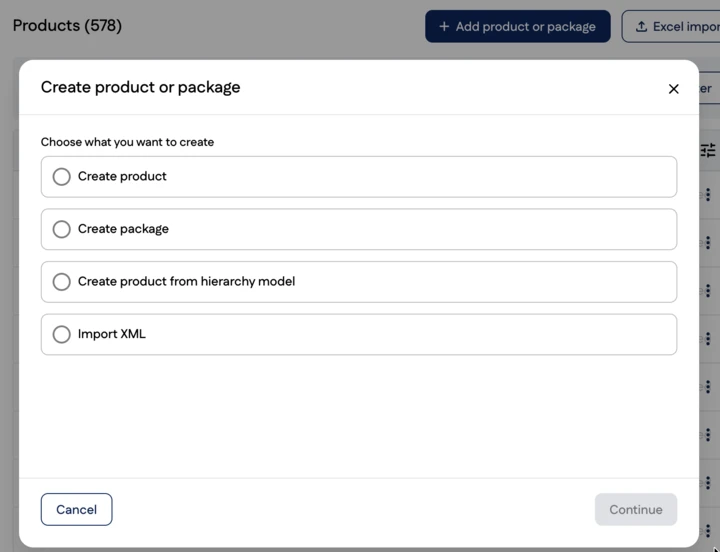
Continue by selecting Add product. Create a GTIN for the product by selecting one of the following options:
Create a new GTIN
- Select this option when you want to create a new GTIN from your company’s GS1 Company Prefix. Open the drop-down menu and select the GS1 Company Prefix from which you want to create the GTIN.
- The number of available GTINs is shown next to each GS1 Company Prefix. (You can order a new GS1 Company Prefix if there are no available GTINs in the list.)
Enter GTIN
- Select this option when the GTIN has not been created from your GS1 Company Prefix (for example, the GTIN of an imported product), or when you maintain your GTINs in a separate system, such as Excel, ERP or PIM.
Leave GTIN blank
- Select this option when you want to save the GTIN at a later time. You can save all other product information and add the GTIN before publishing. A GTIN is required to share product information with trading partners.
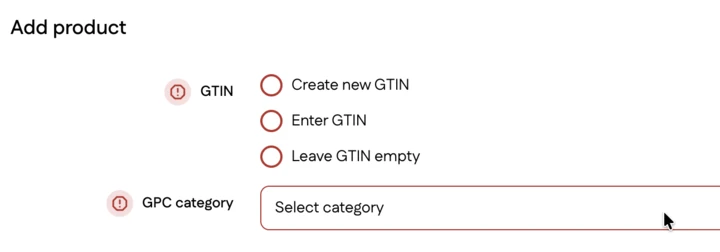
GPC category
Select the category code that describes the product as precisely as possible or is the closest match. For example, there is no specific category code for smoothies, so the code is selected based on other characteristics, such as Fruit Juice, Vegetable Juice or Dairy Based drink. Be consistent and use the same code for similar products, as this makes it easier to update product information.
Use of product information
The product creation view includes the Use of product information selection. This selection is displayed to users who create or enter a new GTIN from their own GS1 Company Prefix. If you select Leave GTIN blank for now, the selection is not displayed, and the default is always to share product information with the trading partner.
Extended product information for trading partners
- Select this option when you want to share product information with your trading partner.
- A wide range of product information is saved for the product, including the ingredient list, allergens and marketing text.
- Upon publication, product information is transmitted to all recipients who have subscribed to it, such as SOK, Kesko and Tokmanni.
Basic information for allocating GTIN
- Select this option when you need a new GTIN but do not intend to share product information with your trading partner.
- A few basic details, such as the brand name, are saved for the product.
- Product information is transmitted only to the GS1 Registry Search / Verified by GS1 service. Read more
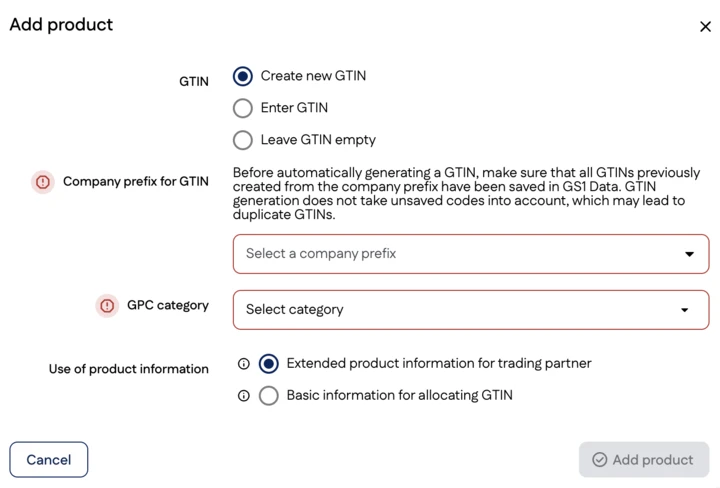
Click Add product and continue maintaining product information in the editing view.
Add extended product information for trading partners
In the editing view, product information is organised into different information groups. You can move between groups and maintain product information. GS1 Data saves the information you maintain automatically; you do not need to save it separately.
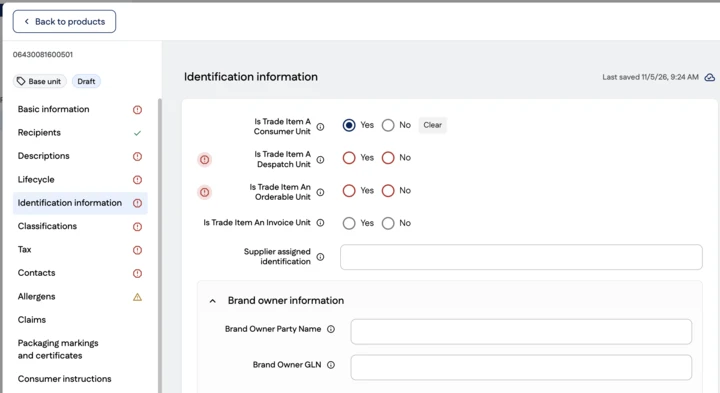
Go through all the information groups in the menu on the left and enter the product information. You can move between groups without saving, as GS1 Data saves the information automatically. The information to be saved for a product depends on its GPC category, i.e. the type of product. As a general rule, save the following information for the product:
- all information shown on the product packaging (e.g. ingredient list, name and packaging symbols)
- all information that can be obtained from the product packaging (e.g. weight, packaging materials and measurements)
- information required by legislation (e.g. product origin information)
- information needed by product information recipients (e.g. the basis for the unit price and information in different languages)
Once you have entered the information for the base unit, the next step in creating the product is to add a package. A package is created in the same way as a base unit, but there is much less information to enter. Each package is identified by its own GTIN and appears as a separate level in the hierarchy.